

Airveek field guide
Smartphone Case Lifestyle Product Photo: Show Scale Without Hiding Fit
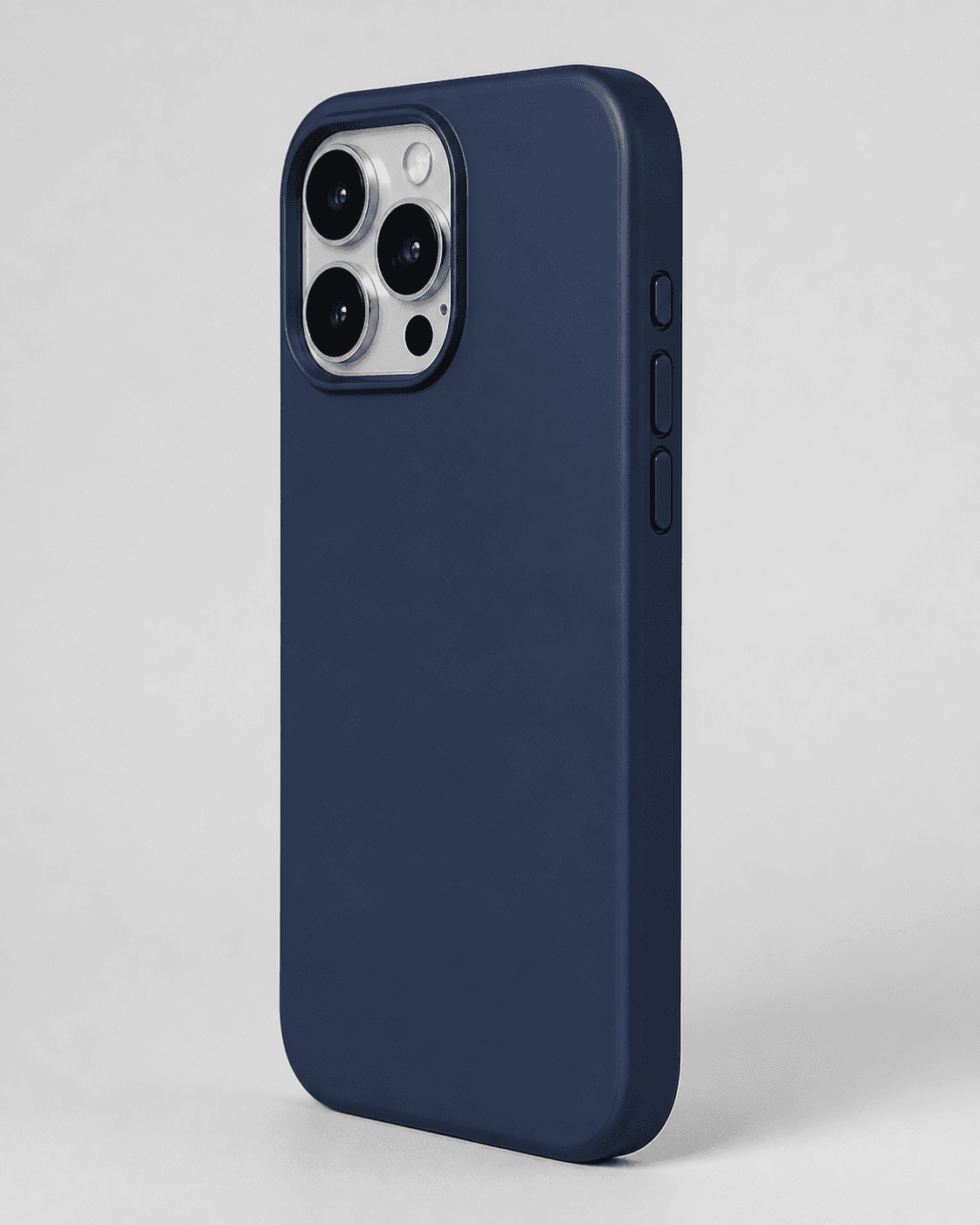
Use the supplied protective phone-case reference to anchor the rounded shape, rear camera opening, three raised side buttons, and visible dark color. In Airveek, place the case around an unspecified phone in a quiet desk-by-window scene, use one hand or plain object only for scale, and keep the case dominant. Leave the camera opening, controls, bottom ports, and edge visible in a square-safe crop; review full size and as a mobile thumbnail before export.
Search task: smartphone case lifestyle product photo
Written by LIKA
The buyer question
How do I show this smartphone case in a believable setting without hiding its scale or important details?
Quick setup
- Goal
- Ecommerce product-page supporting image and mobile social lifestyle crop
- Output
- 1:1 square-safe master, 4:5 lifestyle crop where the destination supports it, Largest useful export before destination-specific resizing
- Goal
- social-post
- Mode
- product-scene
- Scene
- lifestyle
Example Airveek result
How to create it
1. Add the two supplied references
Upload generic-phone-case.png as the product reference and public/images/morrow/morrow-logo.png as the second input. Use the case image to preserve the rounded dark silhouette, rear camera opening, three raised side buttons, and visible color; use the logo image only for the exact lowercase morrow mark and both sparkle stars.
2. Choose the lifestyle setup
In Airveek's product-fashion creator, set Mode to product-scene, Scene to lifestyle, and Goal to social-post. Keep this as one lifestyle job for context and scale; use the clean listing and close detail siblings for unobstructed identification and port proof.
3. Build the scene around scale
Place the case around an unspecified phone on a clean desk by a window. Add one unbranded hand or one plain desk object for scale, keep the case larger and sharper than the cue, and use soft directional light with gentle fill so the dark edge remains visible without a hard reflection.
4. Protect the fit cues and crop
Keep the rear camera opening, three side buttons, bottom port openings, and edge thickness inside the safe crop. Keep hands, props, shadows, and any phone screen away from those areas, and leave margin around the case so a square mobile crop does not cut off the silhouette.
5. Compare before export
Compare the generated frame with the supplied case and logo at full size and as a small mobile thumbnail. Reject changed geometry or color, a shifted camera opening, hidden ports, unreadable buttons, an altered morrow mark, new text, or a crop that makes the case too small to identify. Confirm the destination's current format, pixel, and file-size requirements before resizing.
Tested prompt
Use the supplied generic-phone-case.png reference and supplied fictional morrow logo reference as the only inputs. Create one premium ecommerce lifestyle photo for one protective phone case in a clean desk-by-window setting. Show the case around an unspecified phone at a believable three-quarter rear angle, with one unbranded hand or one plain desk object used only for scale. Keep the exact rounded case silhouette, rear camera opening, three raised side buttons, visible dark color, edge profile, and product identity unchanged. Keep the case the largest and sharpest subject; leave the camera opening, side controls, bottom port openings, and edge thickness visible and easy to crop for mobile. Apply the exact lowercase wordmark "morrow" with its two sparkle stars naturally to the product surface or a small package element, and invent no other readable brand text. Use soft directional window light with gentle fill so the case separates from the desk without glare. Do not add a phone model, readable phone UI, dimensions, materials beyond the visible reference, protection ratings, compatibility claims, extra products, watermarks, retailer logos, promotional overlays, or a plain empty background.Recorded settings
- Goal
- social-post
- Mode
- product-scene
- Scene
- lifestyle
Common problems and fixes
Problem: The hand or desk prop covers the camera opening, buttons, ports, or edge.
Fix: Move the scale cue to the outer edge of the frame, reduce it to one plain object or a partial hand, and keep the proof areas unobscured.
Problem: The dark case blends into the desk or the window light creates a hard reflection.
Fix: Use a lighter quiet desk surface, soften the window light with gentle fill, and keep a controlled side highlight that separates the edge without glare.
Problem: The phone screen, model text, or background becomes the hero.
Fix: Use an unspecified phone with no readable UI, reduce background contrast, and move focus back to the case while keeping one scale cue.
Problem: The square or 4:5 crop cuts off the case or makes it too small.
Fix: Pull back slightly, keep margin around the complete silhouette, and check both crops at mobile-thumbnail size before resizing.
Problem: The camera opening, side buttons, color, or morrow mark changes between the source and result.
Fix: Reuse both supplied references, repeat the identity constraints, simplify the angle, and reject the result if the visible product or exact lowercase mark with two sparkle stars no longer matches.
What to double-check
- The supplied reference anchors the visible rounded silhouette, rear camera opening, three raised side buttons, and dark color; it does not identify a phone model or verify fit, dimensions, material specification, or protection rating.
- A lifestyle image can show context, scale, and visible alignment, but it cannot by itself prove model compatibility, drop protection, charging performance, grip, water resistance, or another product specification.
- No finished generated lifestyle frame is included in this draft. Run the saved preset and compare the result with the supplied case and exact morrow mark before using it in a storefront or campaign.
- Keep the clean listing and close detail jobs separate from the lifestyle frame so the hand, phone screen, desk, or shadow does not cover the camera opening, side controls, bottom ports, or edge.
Why this works
A phone case needs context for scale, but its useful buying proof remains at the boundaries: the camera opening, side controls, bottom ports, and edge. A quiet desk-by-window scene and one restrained scale cue help a shopper imagine use while keeping the case dominant. Holding the supplied silhouette, visible color, and exact morrow mark steady makes the lifestyle frame belong to the same set as the clean listing and detail images.
Before you export
- Use the same supplied phone-case reference and supplied morrow logo reference for the lifestyle job.
- Keep the rounded case silhouette, rear camera opening, three raised side buttons, visible dark color, and edge profile consistent with the source.
- Use one restrained unbranded hand or one plain desk object for scale, and keep it away from the camera opening, buttons, ports, and edge.
- Use soft directional window light with gentle fill so the case separates from the desk without glare or a lost edge.
- Leave enough breathing room for a square mobile crop and a 4:5 lifestyle crop; keep the case the largest, sharpest subject.
- Keep the exact lowercase morrow wordmark and both sparkle stars unchanged, with no other readable brand text or overlay.
- Review full size and mobile-thumbnail size, then confirm model compatibility and all technical specifications from product information or testing.
Common questions
What should a smartphone case lifestyle product photo show?
Show the case in a believable setting with one restrained scale cue, but keep the case dominant and easy to inspect. For this reference, keep the rear camera opening, three raised side buttons, bottom port openings, edge, and visible dark color readable; use the separate detail job for a closer inspection.
How do I show the size of a phone case without hiding it?
Use one unbranded hand or one plain familiar desk object at the edge of the frame. Keep it smaller than the case and away from the camera opening, buttons, ports, and edge. Review the scene at full size and as a mobile thumbnail so the scale cue supports the product instead of becoming the subject.
Can a lifestyle photo prove that this case fits a specific phone model?
No. The image can make the visible opening, controls, ports, and edge easy to compare, but the supplied reference does not identify a phone model or establish compatibility. Confirm the exact model and technical specifications from product information or testing, then use the photo to check that the verified variant is represented accurately.
Should the lifestyle frame replace the clean listing image?
Treat it as a supporting image unless the destination explicitly calls for a lifestyle hero. Keep a clean product-dominant view for quick identification, then use the desk-by-window frame for context and scale and a separate close-up for camera, button, port, and edge proof. Check the destination's current image rules before choosing the primary slot.
Further reading
- Airveek: All-in-One AI Image Generator — Airveek
- Image link [image_link] - Google Merchant Center Help — Google Merchant Center Help
- Lifestyle image link [lifestyle_image_link] - Google Merchant Center Help — Google Merchant Center Help
- The Complete Guide to Ecommerce Photography — Shopify
- How To Test Product Images: 6 Photography A/B Tests To Run — Shopify
- Product Photography: A DIY Guide for Beginners — Shopify
- Image SEO Best Practices — Google Search Central
- These cutouts for the camera button.. are awful. — Reddit r/iphone community discussion
- Camera cutout alignment — Reddit community discussion
- Marketplace/category reference — Amazon marketplace reference