

Airveek field guide
Smartphone Case Clean Listing Product Photo Workflow
Start with the supplied protective phone case and the supplied `morrow` logo as separate inputs. In Airveek, choose product-scene, studio, and store-listing, then create one square-safe case image on a quiet background. Keep the camera cutout, side buttons, edge thickness, dark-blue color, and exact lowercase `morrow` mark with its two sparkle stars visible; check the full frame and a 240 × 240 thumbnail before export.
Search task: smartphone case clean listing product photo
Written by LIKA
The buyer question
How do I create a clean listing image for this smartphone case while keeping the product identity accurate?
Quick setup
- Goal
- Marketplace main product image / ecommerce listing
- Output
- 1:1 square composition, 1500x1500 target when supported by the destination, 240 × 240 mobile-thumbnail review
- Goal
- store-listing
- Mode
- product-scene
- Scene
- studio
Example Airveek result
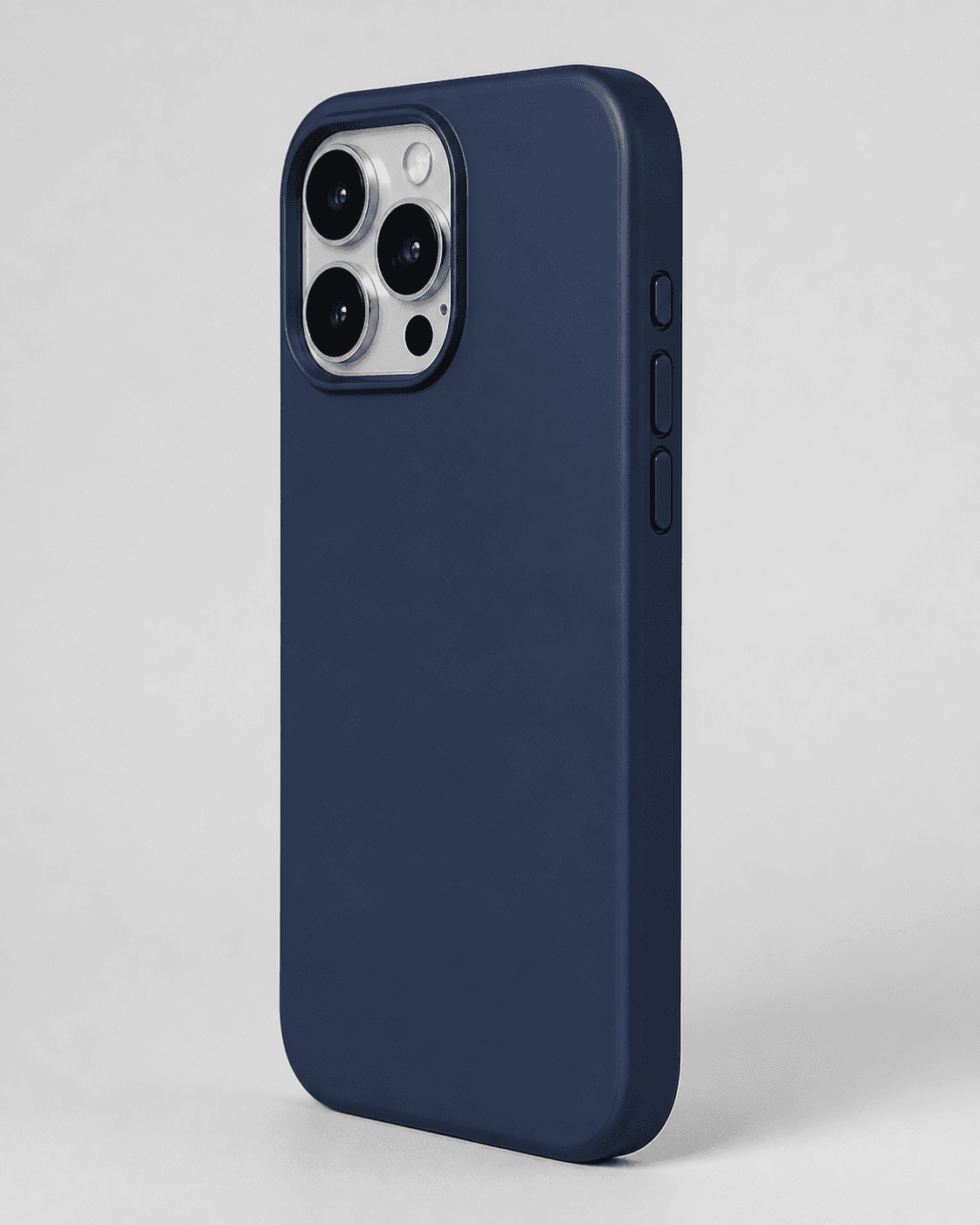
How to create it
1. Upload the case and logo references
Add the supplied protective phone case image first and the supplied `morrow` logo reference second. Use the case image to preserve the complete silhouette, raised camera cutout, side buttons, edge thickness, and visible dark-blue color. Keep the exact lowercase wordmark `morrow` and both sparkle stars from the supplied logo reference.
2. Choose the clean listing setup
In Airveek's product-fashion creator, select Mode: product-scene, Scene: studio, and Goal: store-listing. Start with one complete product on a quiet neutral background so the main frame answers what the shopper will receive before adding context.
3. Protect the buyer-critical details
Keep the camera opening, side buttons, rounded corners, visible edge thickness, and supplied color inside the crop. Use soft controlled light to reveal the case profile without a bright reflection that erases the button or edge detail.
4. Paste the product-specific prompt
Ask for the exact case identity and supplied `morrow` mark, with no invented model, compatibility claim, extra accessory, or added copy. Keep the logo natural to the product surface or package rather than floating over the image.
5. Generate and inspect the listing frame
Run a fresh listing job from both supplied references. Compare the result with the source at full size, in a square crop, and at 240 × 240. Select it only when the complete silhouette, camera opening, side buttons, edge thickness, color, light, and exact supplied mark remain consistent; otherwise revise the prompt and rerun.
6. Export the largest useful file
Keep the largest useful export until the destination's current image, metadata, and variant requirements are confirmed. Use the clean listing frame as the primary candidate, and keep hand scale or close port inspection in the supporting gallery rather than shrinking the main case.
Tested prompt
Use the supplied protective phone case reference and the supplied fictional `morrow` logo reference as the only inputs. Apply the exact lowercase wordmark "morrow" with its two sparkle stars naturally to the product label, package, or product surface; preserve the mark without inventing other words. Create one clean marketplace-safe listing photo for one protective phone case. Keep the exact case shape, camera cutout, side buttons, edge thickness, and color unchanged. Use a neutral commercial studio background, make the complete case the clear hero, and keep all buyer-visible shape and material details sharp. Frame the case square-safe with enough margin for a centered mobile thumbnail. Use soft, controlled light that reveals the edges without glare. Do not add any other readable text, invented model or compatibility claims, extra products, phone accessories, watermarks, retailer logos, borders, or promotional overlays.Recorded settings
- Goal
- store-listing
- Mode
- product-scene
- Scene
- studio
Common problems and fixes
Problem: The camera cutout, side buttons, or edge thickness becomes unclear.
Fix: Pull back slightly, leave square-safe margin around the complete case, and use soft controlled light. Reserve the close edge and port view for the detail job.
Problem: The generated case changes shape, color, finish, or the supplied mark.
Fix: Re-upload the case and logo references, repeat the visible identity constraints, and rerun. Do not correct a changed product with invented text or graphics.
Problem: The logo appears as a floating overlay or extra words appear in the scene.
Fix: Keep the supplied exact lowercase `morrow` wordmark with both sparkle stars natural to the case, package, or product surface, and remove every other readable mark.
Problem: The case disappears in the mobile thumbnail.
Fix: Reduce props, increase product fill while preserving the complete silhouette, simplify the background, and check the centered 240 × 240 crop before export.
Problem: The image implies a phone model, fit, measurement, or protection claim.
Fix: Remove rulers, badges, labels, and unsupported copy. Keep model compatibility, dimensions, materials, and protection performance in verified product information.
What to double-check
- The supplied reference visibly shows one dark-blue protective phone case with a raised camera cutout, side buttons, rounded edges, and a visible case profile. It does not establish a phone model, exact dimensions, material specification, drop rating, charging compatibility, or other product claims.
- A clean listing image can communicate visible case identity, camera opening, buttons, edge thickness, and color; it cannot prove fit or protective performance. Verify those details from the product information.
- The available prior capture did not include the supplied `morrow` logo input and combined three variations in one run, so its generated images are not shown here. Create a fresh branded capture from the current setup before using generated media.
- Confirm the destination's current image dimensions, file size, metadata, variant matching, and brand-treatment requirements before export or syndication.
Why this works
A clean, product-dominant frame answers the first listing question—what exactly is being sold—before context or close inspection. Keeping the case silhouette, camera cutout, side buttons, edge thickness, color, and supplied mark in view protects product identity, while soft controlled light keeps the profile readable at a small thumbnail. The lifestyle and detail siblings can then carry hand scale and port inspection without overloading the main image.
Before you export
- Compare the result with the supplied reference: complete silhouette, raised camera cutout, side buttons, rounded edges, edge thickness, and dark-blue color should remain consistent.
- Keep one complete case clearly dominant and inside the square-safe crop, with enough margin for a centered 240 × 240 mobile-thumbnail check.
- Use soft directional or diffused light so the case edge and button shapes read without glare or a shadow that hides the camera opening.
- When branding is shown, use the supplied exact lowercase `morrow` wordmark with both sparkle stars as natural product branding and no other readable brand text.
- Verify phone-model fit, dimensions, material, charging compatibility, protection performance, and other specifications from product information rather than from the image.
Common questions
What should the main smartphone case listing image show?
Show one complete, unobscured case as the clear hero on a quiet background. Keep the camera cutout, side buttons, visible edge profile, supplied color, and exact product variant easy to inspect. Use the lifestyle and detail images for hand scale or close port inspection instead of making the main frame carry every job.
Should I show the case on a phone or by itself?
Keep the primary listing frame focused on the complete case so its identity is easy to check. A restrained phone-in-hand or installed view can work as a supporting lifestyle image for apparent scale, provided it does not hide the camera opening, buttons, or edge. Separate images keep those buyer questions clearer.
Can a product photo prove that this case fits a specific phone model?
No. The image can preserve the visible camera opening, button placement, edge profile, and color, but it cannot verify a model number, measured fit, charging compatibility, or protective performance. Match the image to the correct product variant and confirm compatibility from the product information.
How much should the case fill a square listing image?
Make the complete case large enough to read on mobile while leaving margin around the camera cutout, buttons, and edges. The supplied Google Merchant Center guidance currently recommends framing the product at roughly 75% to 90% of the image space and providing around 1500 × 1500 pixels or more when possible; check the destination's current requirements before export.
Further reading
- Image link [image_link] - Google Merchant Center Help — Google Merchant Center Help
- The Complete Guide to Ecommerce Photography — Shopify
- Marketplace/category reference for protective phone case listings — Amazon marketplace reference