

Airveek field guide
Simple Pendant Necklace Detail Product Photo: Show Scale and Clasp
Make the detail image answer the inspection question, not repeat the listing view: show the pendant and clasp sharply, keep the chain traceable, and add a separate worn view for scale. Start from the supplied necklace reference, use soft neutral light and a square-safe crop, then compare the result at full size and as a mobile thumbnail. Keep the exact shape, metal color, and supplied branding unchanged.
Search task: necklace jewelry detail product photo
Written by LIKA
The buyer question
Which detail should this necklace jewelry product photo prove before a shopper buys?
Your starting product
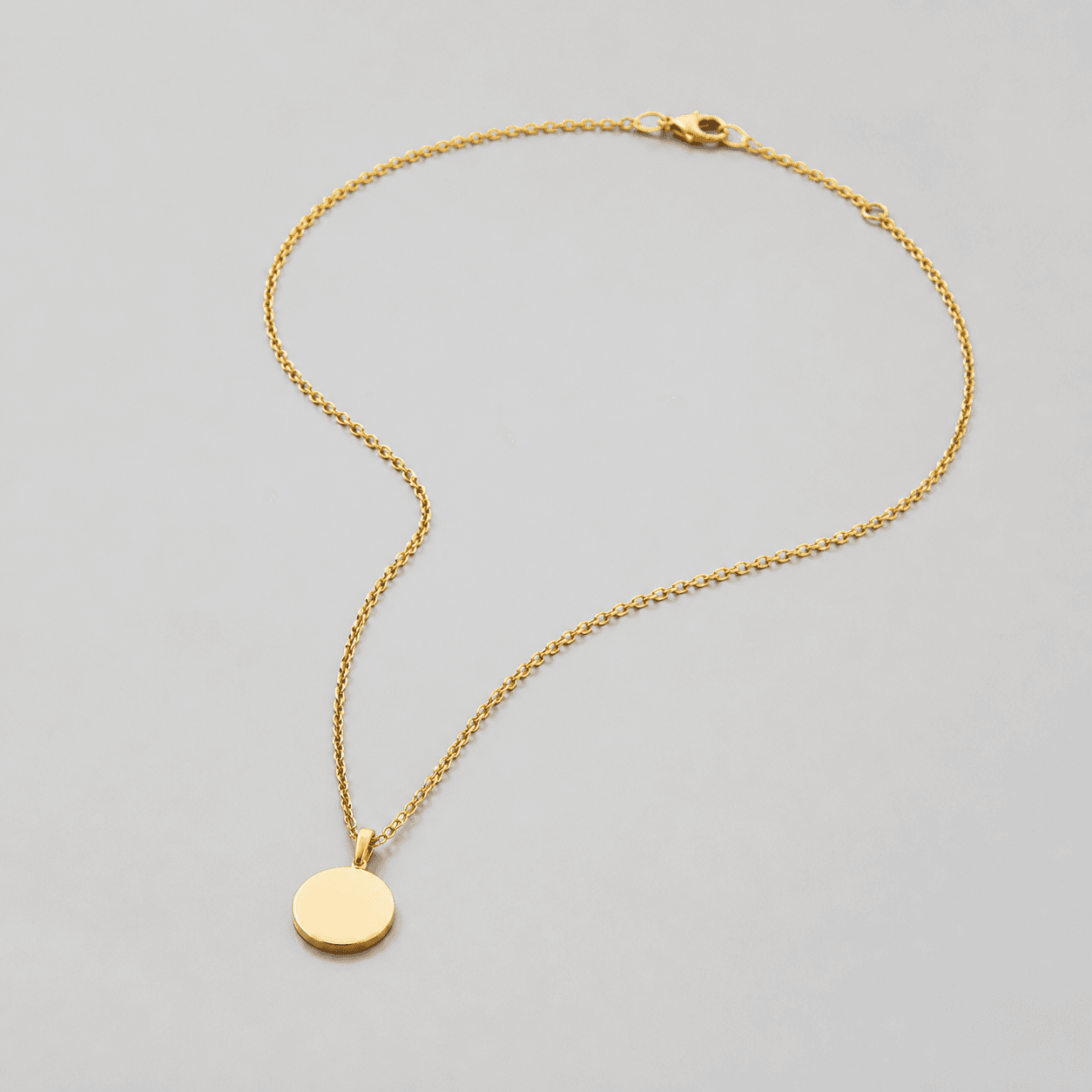
Start with a clear photo that shows the full product and the details shoppers need to see. Keep this reference nearby while you generate, compare, and refine each image.
Quick setup
- Goal
- ecommerce product-page detail gallery
- Output
- 1024x1024
- Goal
- store-listing
- Mode
- product-scene
- Scene
- studio
Example Airveek result

How to create it
1. Add the product and logo references
Upload the supplied necklace reference first, then add the supplied morrow logo reference as the second input. Keep the identity anchors visible: one round pendant, one fine chain, one clasp, and the original warm metal color.
2. Set the detail workflow
Choose Mode: product-scene, Scene: studio, and Goal: store-listing. Use a square-safe composition that brings the pendant and clasp close enough to inspect while leaving enough margin for a mobile crop.
3. Compose one inspection job
Make the pendant the sharpest subject and keep the chain path readable into the clasp. Use the close view to answer hardware and shape questions; keep the worn neckline view as a separate scale cue rather than mixing in unrelated jewelry or props.
4. Control light and the supplied mark
Use broad, soft neutral light to separate the chain links, pendant edge, and clasp without a hard reflection washing over the metal. When using the demo brand, place only the exact lowercase morrow wordmark and both sparkle stars on the jewelry card or package.
5. Review at full size and thumbnail size
Compare the output with the source at full size and at 240 × 240. Check the pendant silhouette, chain continuity, clasp shape, warm metal color, mark accuracy, and crop margin. Use the recorded 1024 × 1024 square as the working export size, then confirm the destination's current requirements before placement.
Tested prompt
Use the supplied simple pendant necklace image as the identity reference and the supplied fictional morrow logo reference as the second input. Keep the exact lowercase wordmark "morrow" and its two sparkle stars together as the only brand mark; place them naturally on a simple jewelry card or package, and add no other readable words. Create one close-up ecommerce detail photo for one simple pendant necklace. Keep the exact round pendant, fine chain, clasp, and warm metal color unchanged. Show the pendant and clasp at inspection scale with the chain traceable, soft diffused neutral light, controlled reflections, and a square-safe crop with enough margin for mobile thumbnails. Do not invent dimensions, materials, features, claims, extra jewelry, duplicate necklaces, text overlays, watermarks, retailer marks, or promotional copy.Recorded settings
- Goal
- store-listing
- Mode
- product-scene
- Scene
- studio
Common problems and fixes
Problem: The clean necklace frame looks polished but leaves worn scale and clasp inspection unanswered.
Fix: Keep the clean frame for listing identification and create a separate square detail composition with a close clasp view plus a restrained worn-scale view.
Problem: The fine chain or clasp blends into a pale background or loses detail under glare.
Fix: Shift to a quiet neutral surface, use broad diffused light with controlled reflections, and keep the chain path and clasp inside the crop.
Problem: The supplied brand mark is distorted or extra readable words appear.
Fix: Add the supplied logo reference again as the second input, preserve the exact lowercase morrow wordmark with both sparkle stars, and remove every other readable brand or promotional element.
Problem: The pendant silhouette, clasp, chain path, or warm metal color drifts from the source.
Fix: Compare the result against the supplied reference at full size and thumbnail size, restate the exact visible identity anchors in the prompt, and rerun the detail composition.
What we rejected or corrected


What to double-check
- The supplied reference visibly shows one round pendant, a fine chain, a clasp, and a warm metal color. Verify the actual material, dimensions, chain length, closure behavior, and care details from the product information for the item being sold.
- A close image can show visual shape, chain path, clasp, and relative worn scale. It cannot prove exact measurements, metal purity, durability, comfort, or other performance claims.
- The saved ECO20 recording uses one combined three-result prompt and did not include the supplied morrow logo input. Treat its composite as the composition example, then add the supplied logo reference for a branded rerun and inspect the exact mark before export.
- Use the detail frame as supporting gallery imagery rather than a replacement for a clean listing image. Confirm the current destination requirements before placing the recorded 1024 × 1024 file.
Why this works
A necklace detail image is useful when it assigns one inspection job to the close crop. Bringing the pendant and clasp forward lets a shopper check the visible shape and connection points, while a worn neckline panel supplies relative scale without pretending to be a ruler. The clean listing sibling can stay simple, and the lifestyle sibling can carry the broader wearing context.
Before you export
- Compare the round pendant, fine chain, clasp, and warm metal color with the supplied source before accepting the result.
- Make the pendant and clasp sharp and keep enough chain visible to show how the parts connect; remove glare that flattens the metal.
- Use the worn view only as a relative scale cue and keep exact dimensions and chain-length claims tied to verified product information.
- When adding the demo treatment, preserve the exact lowercase morrow wordmark and both sparkle stars, with no other readable brand copy.
- Inspect the original-size frame and a 240 × 240 thumbnail, then check the 1024 × 1024 crop before export.
- Keep the clean full-necklace view for listing identification and this detail view for pendant, chain, clasp, and scale inspection.
Common questions
What should a necklace detail product photo show?
Show the pendant shape, the chain path into the pendant and clasp, and enough of the closure area for close inspection. Keep the necklace singular and sharp, then use a separate worn view when shoppers need a relative scale cue. The clean listing view should keep its own job of fast whole-product identification.
How can I show necklace size without claiming exact measurements?
Use a restrained worn neckline view or another familiar context to show relative scale, and keep the necklace unobscured. That visual cue can help a shopper understand proportion, but it does not establish chain length, pendant diameter, or fit. Use the verified product information for those exact specifications.
Should the detail image replace the clean necklace listing image?
No. Use the clean listing frame for quick identification, the detail frame for the pendant, chain, and clasp, and the lifestyle frame for worn context. Keeping those jobs separate makes it easier to keep the whole necklace visible in one image and the small hardware readable in another.
Can a necklace photo prove metal purity, chain length, or durability?
No. The image can show the supplied necklace's visible pendant, chain, clasp, finish, and relative worn scale. It cannot verify metal purity, exact measurements, durability, comfort, care requirements, or other specifications. Keep those claims tied to the product information for the exact item shown.
Further reading
- Marketplace/category reference — Amazon marketplace reference
- Image link [image_link] - Google Merchant Center Help — Google Merchant Center Help
- The Complete Guide to Ecommerce Photography — Shopify