

Airveek field guide
Necklace Jewelry Product Photography Guide: Build a Complete Set
Start with one accurate necklace reference, then give each image a job: a clean square listing view to identify the full pendant and chain, a restrained worn view to show relative scale and drape, and a close crop for the clasp and pendant connection. In Airveek, keep the warm metal color and visible geometry fixed, use soft controlled light, and check every crop at thumbnail size before export.
Search task: necklace jewelry product photography guide
Written by LIKA
The buyer question
How do I plan a complete product-photo set for this necklace jewelry from one accurate source asset?
Your starting product
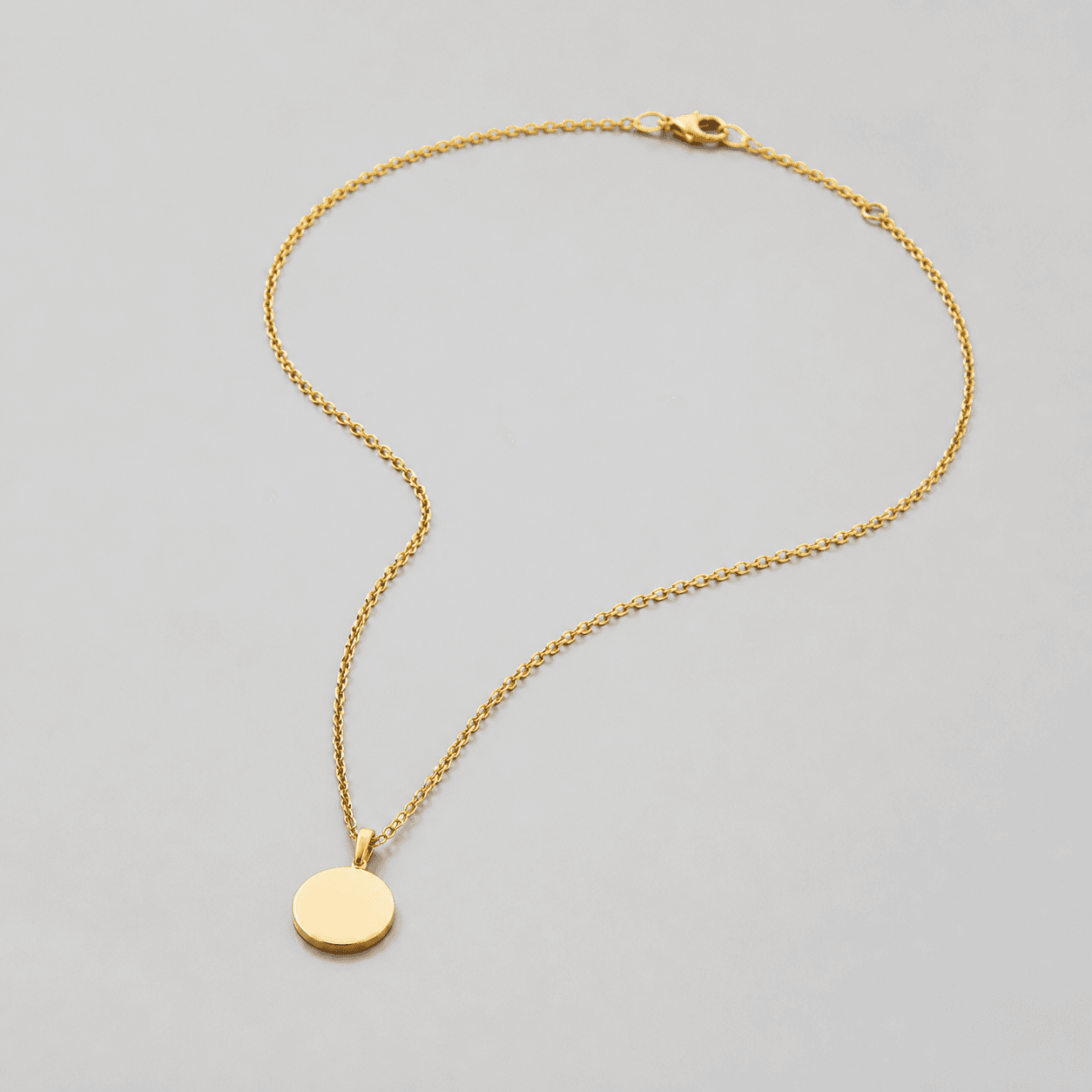
Start with a clear photo that shows the full product and the details shoppers need to see. Keep this reference nearby while you generate, compare, and refine each image.
Quick setup
- Goal
- Ecommerce product gallery and marketplace-ready product-photo planning
- Output
- 1:1 square master; at least 500 × 500 for Google Merchant Center, Around 1500 × 1500 or above square master when possible, Destination-specific worn-scale crop, such as 4:5 when the placement calls for it, 1:1 close detail crop for the pendant and clasp
- Goal
- store-listing
- Mode
- product-scene
- Scene
- studio
- framing
- Keep the clean listing view complete and product-dominant; keep the worn view close enough to show relative scale; use a tighter detail crop for the clasp and pendant connection.
- lighting
- soft diffused commercial light with controlled reflections
- aspectRatio
- 1:1 square-safe master for the clean and detail views; destination-specific crop for the worn view
Example Airveek result

How to create it
1. Add the supplied references
Upload generic-necklace.png as the identity reference and add public/images/morrow/morrow-logo.png as the second input for the fictional demo-brand version. Use the necklace reference to preserve the round pendant, fine chain, clasp, and warm metal color. Use the logo reference only for the exact lowercase morrow wordmark and its two sparkle stars.
2. Start from the recorded Airveek setup
In Airveek's product-fashion creator, use the recorded baseline: Mode set to product-scene, Scene set to studio, and Goal set to store-listing. Keep this baseline for the clean identification view, then apply the job prompts to create the worn-scale and detail views with the same source identity.
3. Assign one buyer question to each view
Make the listing view answer what the product is, the worn view answer how it sits and what its relative scale feels like, and the detail view answer what the pendant connection and clasp look like. Keep the three roles separate so a close crop does not replace the complete necklace view.
4. Shape the light around the metal
Use broad diffusion and gentle fill so the warm metal color stays readable and the chain links do not turn into hot white spots. Keep the background quiet, retain a clean edge around the pendant, and reduce direct reflections before adding styling.
5. Keep the brand treatment exact
When branding is shown, add the supplied logo reference and keep the exact lowercase morrow wordmark with both sparkle stars together on the product or package. Inspect the mark at full size and in the intended crop, and remove any extra readable words before choosing a result.
6. Compare the set before export
Review the three views beside the supplied necklace reference at full size, in their intended crops, and at a 240 × 240 mobile check. Confirm the same visible pendant shape, chain path, clasp, warm metal color, crop safety, and mark treatment before keeping the cleanest masters.
7. Export for the destination
Keep a large square master for the clean and detail views and make a destination-specific worn crop only after checking the current platform rules. Google Merchant Center currently lists at least 500 × 500 pixels and recommends around 1500 × 1500 or above when possible; confirm the destination's current format, pixel, file-size, background, and variant rules before resizing.
Tested prompt
Use the supplied simple pendant necklace reference and the supplied fictional demo-brand logo reference as the only inputs. Create a coordinated three-view product-photo set for one necklace: a clean studio listing view for fast identification, a restrained worn neckline view for relative scale and drape, and a close detail view for the pendant, chain connection, and clasp. Preserve the exact visible round pendant, fine chain, clasp, and warm metal color. When branding is shown, use only the exact lowercase wordmark "morrow" with its two sparkle stars, placed naturally on the product or package. Keep every view sharp, crop-safe, and useful at mobile size. Do not add other readable text, dimensions, materials, claims, extra jewelry, watermarks, retailer marks, or promotional overlays.Recorded settings
- Goal
- store-listing
- Mode
- product-scene
- Scene
- studio
- framing
- Keep the clean listing view complete and product-dominant; keep the worn view close enough to show relative scale; use a tighter detail crop for the clasp and pendant connection.
- lighting
- soft diffused commercial light with controlled reflections
- aspectRatio
- 1:1 square-safe master for the clean and detail views; destination-specific crop for the worn view
Common problems and fixes
Problem: The necklace becomes too small or the chain disappears in the thumbnail.
Fix: Reduce empty space and competing props, keep the full pendant and chain inside the safe crop, and retest at 240 × 240 before export.
Problem: The warm metal surface turns into glare or loses its edge.
Fix: Use broad diffusion, gentle fill, and a quieter reflection path; move direct lights out of the metal's reflected view and compare against the source.
Problem: The worn view shows skin or styling but not how the pendant sits.
Fix: Move the crop closer to the neckline, keep the pendant centered and unobscured, and reserve the scale cue for context rather than adding more props.
Problem: The clasp or pendant connection is too soft to inspect.
Fix: Assign the hardware its own close job, shorten the visible chain path around the proof area, and use soft controlled light with enough contrast to separate the links.
Problem: The supplied mark drifts or extra readable words appear.
Fix: Re-add the supplied logo reference, preserve the exact lowercase morrow wordmark with both sparkle stars together, and remove every other readable word before export.
Problem: The image implies exact size, metal composition, durability, care, or fit.
Fix: Remove rulers, badges, callouts, and invented claims. Use the image for visible product identity and use verified product information for specifications.
What we rejected or corrected


What to double-check
- The supplied reference establishes the visible round pendant, fine chain, clasp, and warm metal color. It does not establish exact chain length, pendant diameter, metal composition or purity, durability, care, comfort, or fit.
- A worn neckline view provides a relative scale cue and shows drape, but it is not a ruler and cannot verify exact measurements or fit.
- The selected recorded output is a square three-panel composition from one combined ECO20 capture; it is useful for the complete-set lesson but is not three independent listing, lifestyle, and detail captures.
- The recorded capture did not include the supplied morrow logo reference. Add that reference as the second input for the fictional branded version and inspect the exact lowercase wordmark with both sparkle stars before export.
- Use verified product information for specifications and destination-specific requirements rather than asking the image to prove them.
Why this works
A complete necklace set works when each view answers one shopping question quickly. The clean listing frame establishes the whole pendant and chain, the worn frame adds a relative scale and drape cue, and the detail frame enlarges the clasp and pendant connection. One source reference and one exact supplied mark keep the set coherent, while separate crops stop the scene from hiding the small hardware.
Before you export
- Compare every result with the supplied necklace reference and preserve the round pendant, fine chain, clasp, and warm metal color.
- Keep the complete necklace easy to identify in the clean listing view and preserve a square-safe crop with useful margin for a mobile thumbnail.
- Use the worn view for a relative scale and drape cue while keeping the pendant and chain unobscured.
- Reserve the close view for the pendant connection and clasp, with soft diffusion and controlled reflections so small hardware remains readable.
- When branding is shown, use only the supplied exact lowercase morrow wordmark with its two sparkle stars and no other readable brand text.
- Inspect the full-size image, intended crop, and 240 × 240 mobile thumbnail for product identity, detail visibility, crop safety, and mark legibility.
- Keep exact measurements, metal composition or purity, durability, care, comfort, fit, and performance claims tied to verified product information.
Common questions
Why use listing, lifestyle, and detail photos for one necklace?
Each view answers a different buyer question. The clean listing frame identifies the whole pendant and chain, the worn view shows relative scale and drape, and the detail view enlarges the clasp and pendant connection. Keeping those jobs separate makes the gallery easier to scan and keeps each crop useful on mobile.
What should the main necklace product photo show?
Show one complete necklace clearly enough to identify the visible pendant, chain, clasp, and color. Keep the product large on a quiet background with enough margin for the intended crop. Google Merchant Center currently lists at least 500 × 500 pixels and recommends around 1500 × 1500 or above when possible; check the destination's current requirements before export.
How can a worn necklace photo show scale without claiming exact measurements?
Use a restrained neckline view to show how the pendant sits and to give a relative scale cue, while keeping the chain and pendant visible. Treat that context as visual proportion only; use verified product information for chain length, pendant diameter, and fit details.
How do I photograph a necklace clasp without losing the product shape?
Give the clasp its own close detail job, keep a short stretch of chain in frame, and use soft controlled light so the metal edge and connection points stay separated. Keep the wider listing view available so the detail crop supports, rather than replaces, whole-product identification.
Can a necklace photo prove metal purity, chain length, or durability?
No. The image can show the supplied necklace's visible pendant, chain, clasp, finish, and relative worn scale. It cannot verify metal purity, exact measurements, durability, comfort, care requirements, or other specifications. Keep those details tied to verified product information for the exact item shown.
Further reading
- Recorded Airveek ECO20 output — Airveek local content kit
- Listing Photos - Etsy Help — Etsy Help
- Image link [image_link] - Google Merchant Center Help — Google Merchant Center Help
- Girlfriend wanted help taking photos for her Etsy store — r/productphotography community discussion
- How To Photograph Jewelry: Tips for Product Photography and Lighting (2025) — Shopify
- Help with photos of my jewelry — r/EtsySellers community discussion
- Feedback on Product Photos — r/productphotography community discussion
- Marketplace/category reference — Amazon marketplace reference
- The Complete Guide to Ecommerce Photography — Shopify
